Usage
Granicus
Downloading
Granicus items are downloaded using the granicus-archiver clips download command. This command will download any items that have not been downloaded yet.
Items are initially downloaded to a temporary directory and then moved to the final directory when the download is complete. This is to handle any errors that may occur during the download process.
A temporary directory may be specified with the --temp-dir option.
This is useful if you are downloading into a separate drive or volume and want to avoid moving files across drives.
The --max-clips option is used to limit the number of clips to
download in one invocation.
$ granicus-archiver clips download --max-clips 10
Checking Local Files
The granicus-archiver clips check command will check local files against what’s stored in the data file. This is useful to see if any files have been deleted or moved.
Note
The same checks are also performed when running the granicus-archiver clips download command.
Uploading to Google Drive
Important
The Google Drive setup steps must be completed before using this feature.
The granicus-archiver clips upload command will upload the Granicus items to Google Drive.
Todo
Add more information about the Google Drive upload feature.
Legistar
There are two variants to most of the Legistar commands. The main commands are from the initial implementation of the tool
and rely on an assumption that the GUID of the RSS items was unique.
This was a flawed assumption: the GUIDs change on every update made in the system, but there is in fact a unique ID
which I refer to as the REAL_GUID in the codebase.
Consequently, the “REAL_GUID” variants for each command were added and are suffixed with “-rguid” in most cases. These variants are recommended and will be the default in the future.
Downloading
Legistar items are downloaded using the granicus-archiver legistar download (or granicus-archiver legistar download-rguid) command. This command will download any items that have not been downloaded yet.
Items are initially downloaded to a temporary directory and then moved to the final directory when the download is complete. This is to handle any errors that may occur during the download process.
A temporary directory may be specified with the --temp-dir option.
This is useful if you are downloading into a separate drive or volume and want to avoid moving files across drives.
The --max-clips option is used to limit the number of items to
download in one invocation.
The PDF files contain embedded links which may or may not be desired. They will by default be removed from the document,
but this can be changed with the --no-strip-pdf-links option.
$ granicus-archiver legistar download --max-clips 10 --no-strip-pdf-links
Or:
$ granicus-archiver legistar download-rguid --max-clips 10 --no-strip-pdf-links
Note
When first running the download command, it may take a while. This is because the data for each item is gathered from a web page on the Legistar site.
Subsequent runs will be much faster as the data is cached locally.
Checking Local Files
The granicus-archiver legistar check (or granicus-archiver legistar check-rguid) command will check local files against what’s stored in the data file. This is useful to see if any files have been deleted or moved.
Note
The same checks are also performed when running the granicus-archiver legistar download command.
Handling Updates
When items have changed in Legistar, this is detected, but the items are not automatically updated. This is to ensure that the user has control over when the updates are applied.
When updates are detected, you will see something like this:
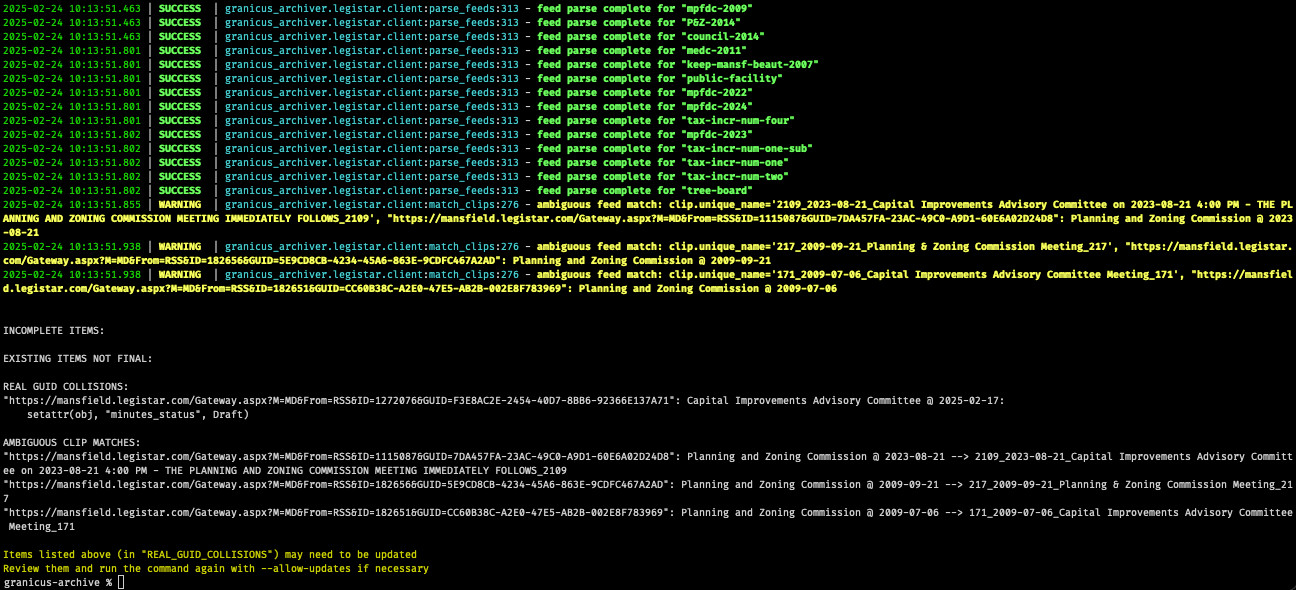
Fig. 11 Legistar Update Warning
In the output above under “REAL GUID COLLISIONS”, you will see a list of items that have changed.
Most of the time it will be a status change setattr(obj, "minutes_status", Draft)
and possibly a change in the URLs available setattr(obj.links, "minutes", <url>).
These cases are safe to update, so you can run the command again with the
--allow-updates option as suggested:
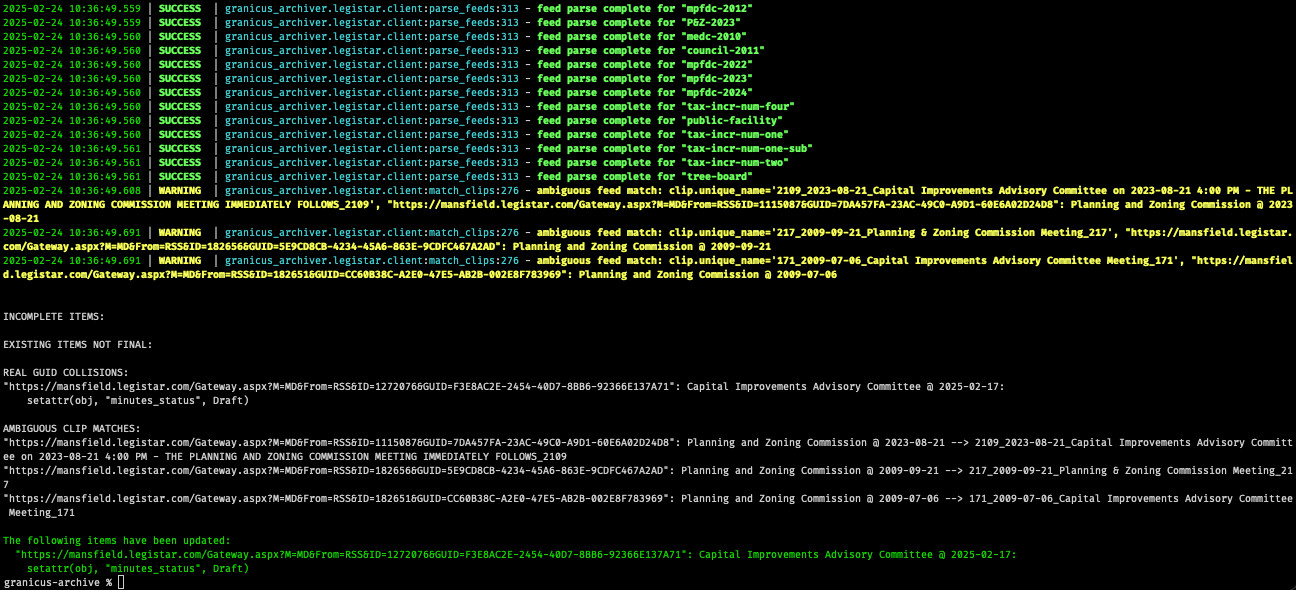
Fig. 12 Legistar Update Complete
Uploading to Google Drive
Important
The Google Drive setup steps must be completed before using this feature.
The granicus-archiver legistar upload (or granicus-archiver legistar upload-rguid) command will upload the Legistar items to Google Drive.
Todo
Add more information about the Google Drive upload feature.
Web Application
Todo
Document the web app