Legistar Setup
The method used to gather data from Legistar is through RSS feeds that can be accessed in the Calendar section of the Legistar website.
The page should look something like this:
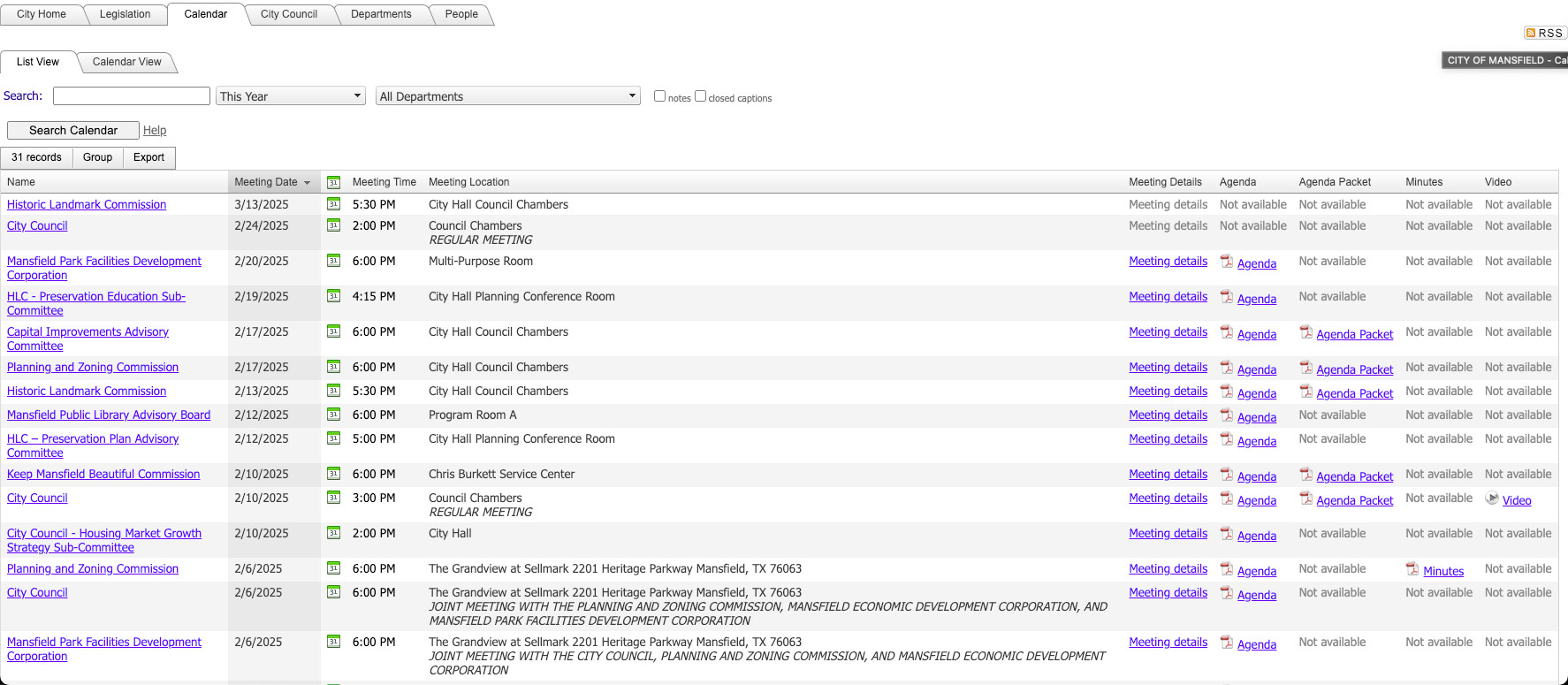
Fig. 9 Legistar Calendar Page
When you click on the RSS icon in the top right corner of the page, you will see something that looks like this:
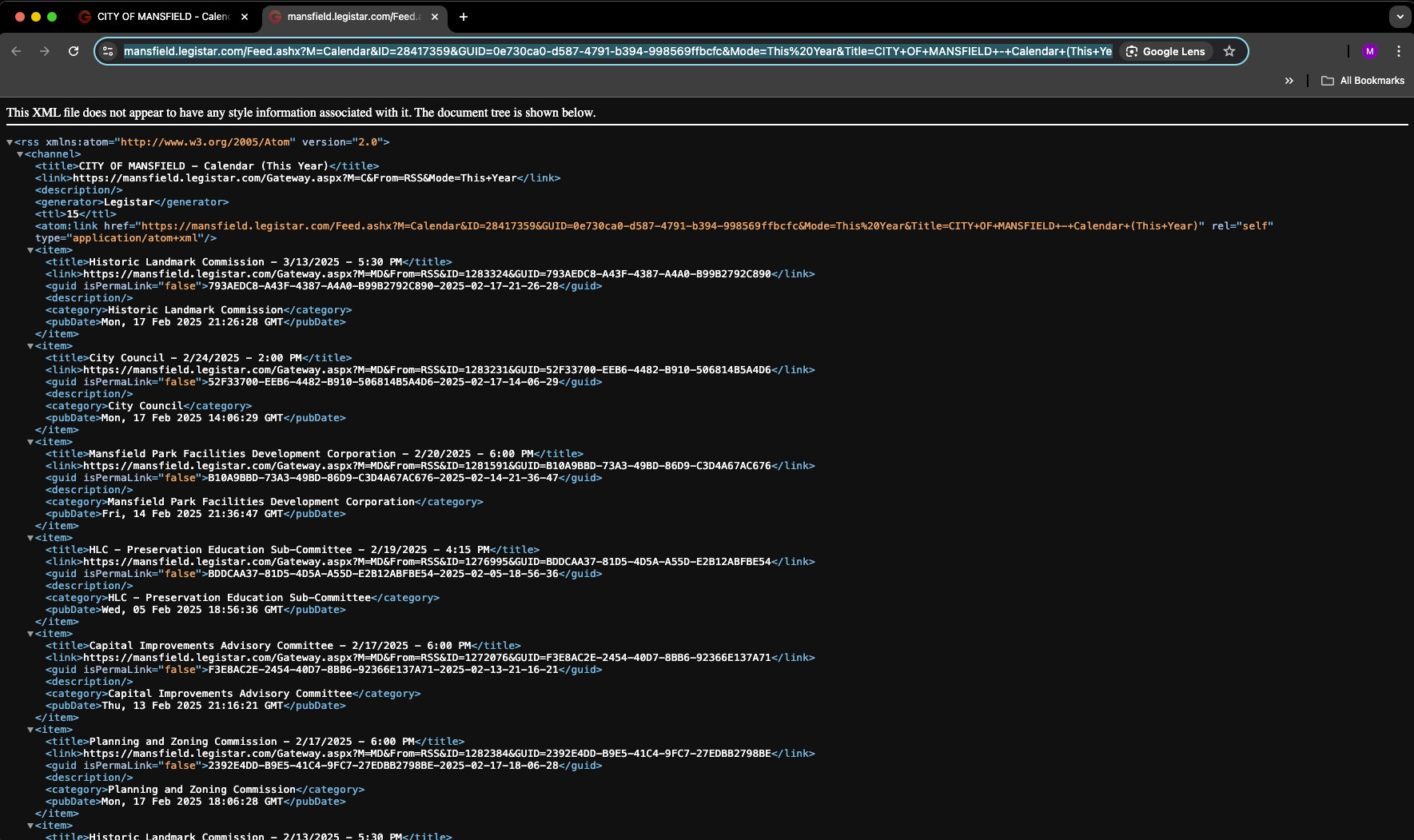
Fig. 10 Legistar RSS Feed
The URL of the feed is what you will need to set things up, but first we need to address some of the “nuances” of these feeds.
RSS Feed “Nuances”
For some reason, the feeds have a limit of exactly 100 items. This means that you will have to use the “Date Range” and “Departments” filters on the Legistar Calendar Page and generate multiple feeds to ensure you don’t hit the 100 item limit.
I have no idea why they do this and I’ve searched for alternative methods, but this is only solution I’ve found that works. In my own setup, I had to generate over a hundred feeds.
Note
It’s ok if items from one feed overlap with items from another feed. The archiver is designed to handle this.
Configuration
As you begin generating the feed URLs, you can add them to the confgiuration using the granicus-archiver legistar add-feed-url command:
$ granicus-archiver legistar add-feed-url --name <a-feed-name> --url <a-feed-url>
Or:
$ granicus-archiver legistar add-feed-url
Name: <a-feed-name>
Url: <a-feed-url>
The name for each feed is arbitrary and exists only for your reference. The URL is the feed URL you generated from the Legistar website (in the address bar of the Legistar RSS Feed image above).
You can also list the feed URLs you’ve added with the granicus-archiver legistar list-feed-urls command.
If necessary (and you are comfortable with editing YAML files), you can edit the
configuration file directly. Its location is platform dependent, but it can be found in the output of
the granicus-archiver command in the --config-file option:
$ granicus-archiver
Usage: granicus-archiver [OPTIONS] COMMAND [ARGS]...

Options:
   -c, --config-file FILE        [default: <CONFIG DIRECTORY HERE>/config.yaml]
   -o, --out-dir DIRECTORY       Root directory to store downloaded files
   --data-file FILE              Filename to store download information.
                                 Defaults to "<out-dir>/data.json"
...
The feed URLs are stored in the config file as a mapping:
legistar:
   feed_urls:
      feed_name_1: feed_url_1
      feed_name_2: feed_url_2
      ...
Legistar to Granicus Mapping
Each Legistar item can be automatically mapped to a Granicus Item by first matching the item’s Category with a Location in Granicus. If there is an Granicus item with a start time that matches (within a certain threshold), the two will be linked.
Since the Legistar Category and Granicus Location aren’t directly tied together, their names may not match exactly. To handle this, you can add manual overrides between these using the granicus-archiver legistar add-category-map command:
$ granicus-archiver legistar add-category-map --legistar <legistar-category> --granicus <granicus-location>
Or:
$ granicus-archiver legistar add-category-map
Legistar Category: <legistar-category>
Granicus Location: <granicus-location>